

Emma, operations manager at a growing furniture retailer with 47 locations, spent every Monday morning manually matching 300+ delivery requests to their nearest stores. Using zip code lists and Google Maps, she'd lose 6 hours weekly — time that cost her company $15,600 annually in productivity. The worst part? Human error meant 12% of deliveries went to suboptimal locations, adding $2,100 monthly in extra fuel costs.
That's when Emma discovered the Excel Store Locator. A simple Google search for "excel macro to find nearest store for customer list" led her to a tool that would transform her Monday mornings forever.
How the Excel Store Locator Helped Emma
- Emma got her Monday mornings back — what took 6 hours now takes 5 minutes with the Excel Store Locator, letting her focus on strategic planning instead of manual matching.
- Emma processed her entire week's worth of 1,500+ customer assignments with one click, and the Excel Store Locator automatically found the optimal store for each customer based on actual driving distance.
- Emma's company approved the purchase immediately when she showed them the $2,100 monthly savings in fuel costs alone — the Excel Store Locator paid for itself in the first week.
- Emma saved her sanity by eliminating the tedious copy-paste routine, and with the Excel Store Locator, she never worried about making matching errors that upset customers.
- Emma felt confident presenting delivery assignments to management because the Excel Store Locator uses Google Maps data for 100% accurate distance calculations.
- Emma impressed her IT department by solving the problem without any coding or complex software — the Excel Store Locator works right inside the Excel she already uses daily.
How Does It Work?
The Excel Store Locator follows a simple 3-step process that anyone can master in minutes:
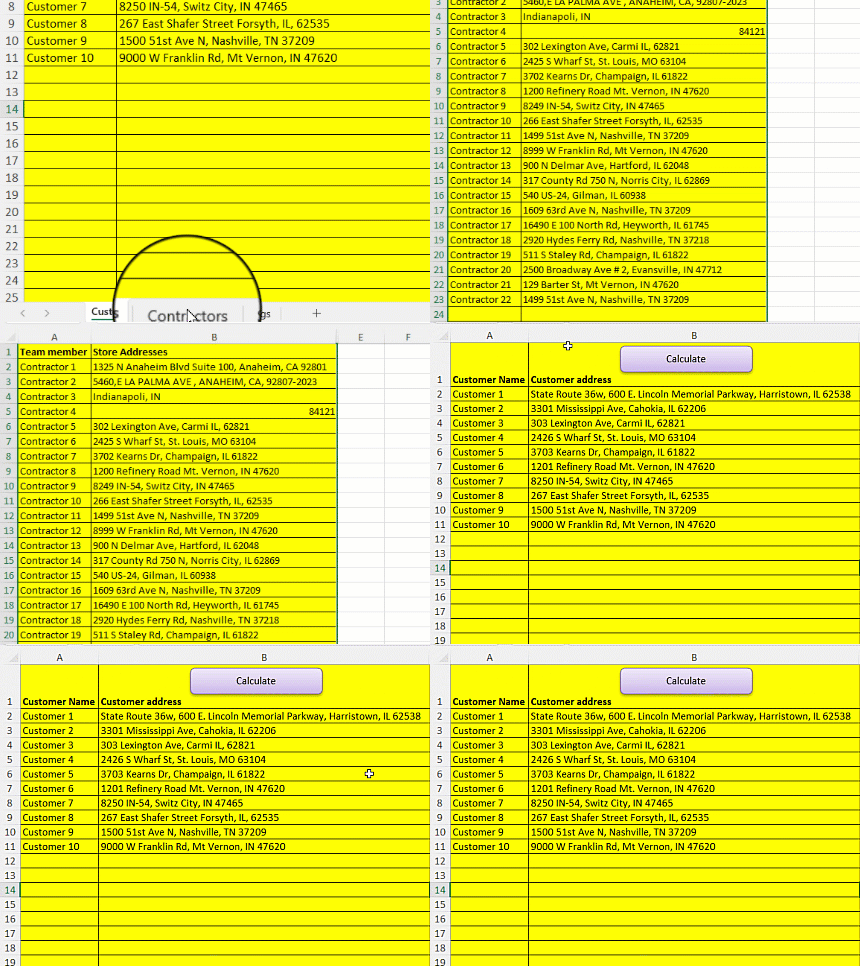
Step 1: Enter Your Customer and Store Data
Simply paste your customer addresses and store locations into the Excel spreadsheet. Mix and match addresses, zip codes, or city/state combinations — the tool handles them all.
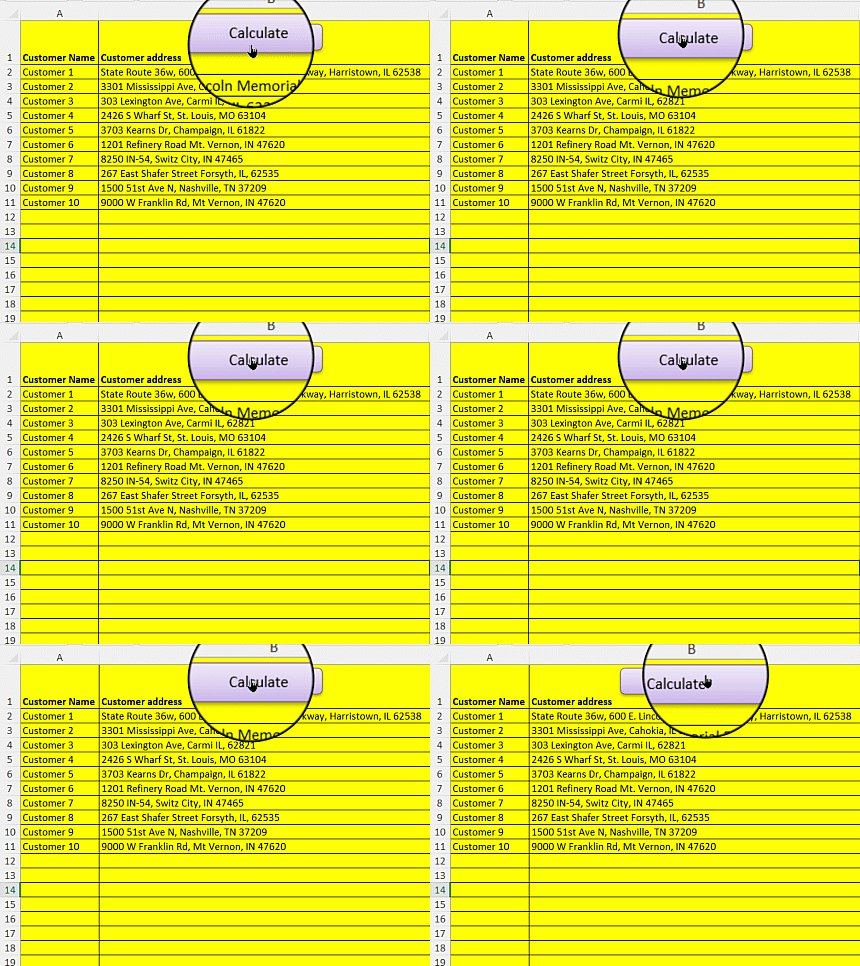
Step 2: Click the "Calculate" Button
With a single click, the Excel macro activates and begins processing your data using Google Maps' powerful distance calculation engine.
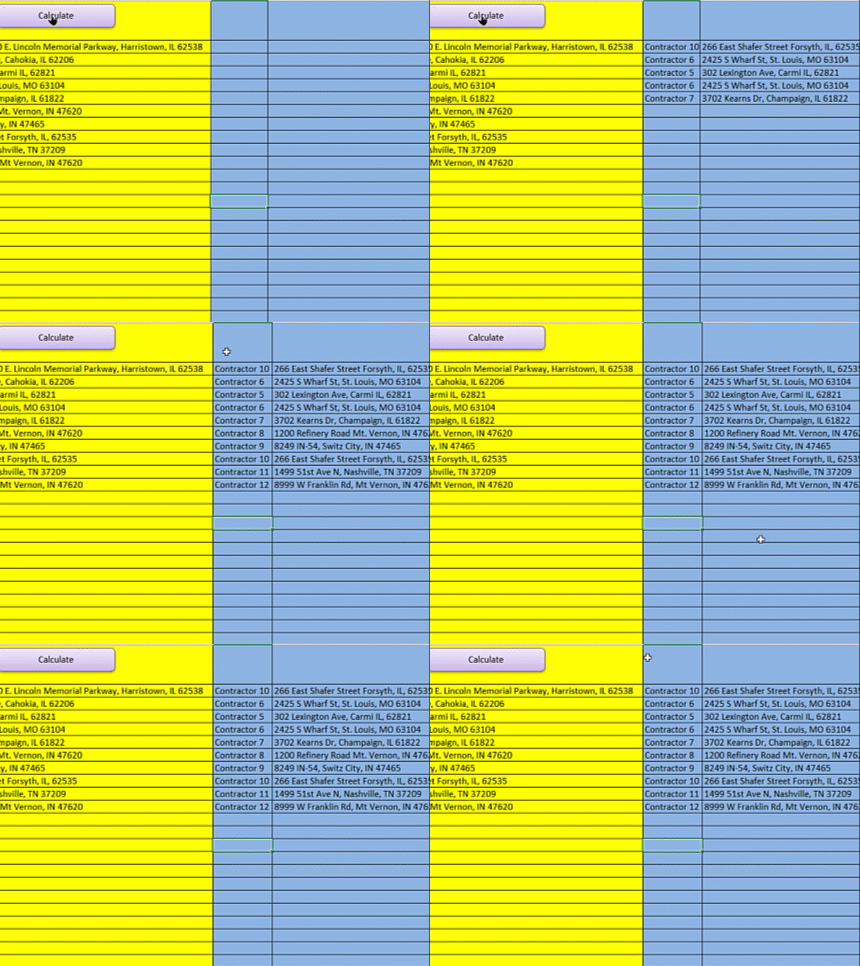
Step 3: Get Your Results Instantly
Like magic, each customer is automatically matched to their nearest store with precise driving distances and times. Export, share, or use the results immediately!
Features of Excel Store Locator
- Google Maps API Integration — Get accurate driving distances to the 1/100th of a mile using real-time traffic data with the Excel Store Locator.
- Batch Processing Power — Process hundreds or thousands of customer-to-store matches simultaneously without manual intervention.
- Flexible Address Input — Use full addresses, zip codes, city/state combinations, or even latitude/longitude coordinates interchangeably.
- International Coverage — Works with addresses worldwide, supporting any location accessible by road for global operations.
- Real-Time Traffic Consideration — The Excel Store Locator factors in current traffic conditions for accurate time estimates.
- No Installation Required — Works directly in Excel without any additional software, plugins, or IT department involvement.
- Multi-User License Available — Share the tool across your entire team with unlimited users on the enterprise license.
Frequently Asked Questions
Q: Is this really as simple as paste and click?
A: Absolutely! The Excel Store Locator requires zero coding knowledge. Just paste your customer list and store locations into the designated columns, click "Calculate," and watch as every customer gets matched to their nearest store automatically. It's designed for busy professionals who need results, not complicated setups.
Q: How accurate are the distance calculations compared to Google Maps?
A: The Excel Store Locator uses the official Google Maps API, so you get the exact same accuracy as if you manually checked each route on Google Maps — accurate to 1/100th of a mile. The difference? Instead of checking hundreds of routes manually, you get all results in seconds.
Q: What if I need help setting it up?
A: You get direct support from Vinnie, the creator, at 801-243-8350. Unlike big software companies with offshore call centers, you'll talk to someone who knows the product inside and out. Vinnie even offers Zoom screen-sharing sessions to ensure you're up and running perfectly. No AI chatbots, just real human help.
Q: Can I use different address formats in the same spreadsheet?
A: Yes! The Excel Store Locator is incredibly flexible. Mix full addresses like "123 Main St, New York, NY 10001" with simple zip codes like "10001" or city/state combinations like "New York, NY" all in the same list. The tool intelligently processes each format and returns accurate results.
Q: Is this a subscription or one-time purchase?
A: It's a one-time purchase — you own it forever! No monthly fees, no annual renewals, no surprise charges. Buy it once and use it for years. This is a huge advantage over subscription-based alternatives that can cost hundreds per month.
Q: What's the maximum number of customers I can process at once?
A: While the tool can technically handle tens of thousands of calculations, most users process 100-5,000 customer matches per session for optimal speed (about 3-5 calculations per second). For massive datasets, simply run multiple batches. Remember, Google provides 40,000 free calculations monthly.
Stop wasting hours manually matching customers to stores. Join over 7,000 businesses that have automated their location assignments with the Excel Store Locator.
With a one-time purchase and lifetime ownership, you'll start saving 5+ hours per week immediately. Plus, with Vinnie's personal support at 801-243-8350, you're guaranteed success.
Get Your Excel Store Locator Now →